Cannot find a China delivery address in Pinduoduo? Follow the required VPN, province, city, district and warehouse-ID steps before paying.
If you are outside mainland China and cannot find China in Pinduoduo's delivery-address selector, do not enter a guessed overseas address. For this address-setting flow, first close the Pinduoduo app completely, connect your VPN to a China node, and then reopen the app. This is the required step for the China address option to appear. After the warehouse address has been saved, you do not need to keep the VPN connected for normal browsing, ordering or package management.
This guide is only about adding a China warehouse address correctly before payment. It is not a guide to import taxes or a general shipping quote. If you need help deciding whether a China warehouse is appropriate for your order, read what a China shopping agent does.
What you need before opening the address page
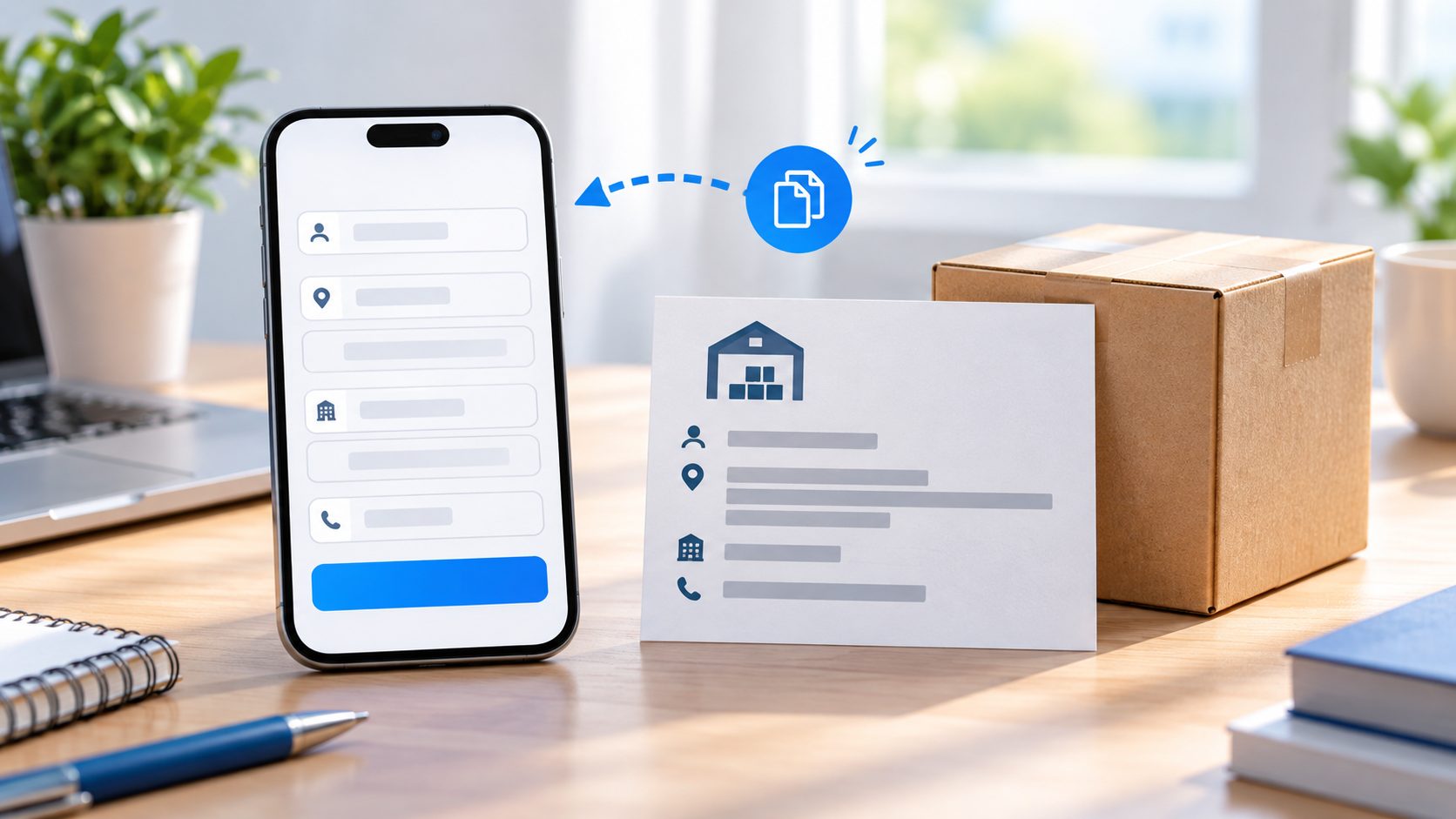
Open the YDA Express App first and copy the current warehouse information shown for your account. Keep these items ready:
- recipient name exactly as displayed;
- mobile number exactly as displayed;
- province, city and district;
- the full street address;
- your personal warehouse ID or member code.
Do not copy a warehouse address from an old screenshot, another customer's order, or a social-media post. A warehouse can use a different receiving line, recipient format or ID rule. Your ID is what lets the warehouse match an incoming parcel to your account.
Required step: reopen Pinduoduo with a China VPN node
- Fully close Pinduoduo. Do not leave it running in the background.
- Connect your VPN to a China node.
- Reopen Pinduoduo and start a new delivery address.
- Confirm that the address selector now offers mainland China.
If the China option is still missing, close the app again and check the VPN connection before reopening it. Do not replace the China warehouse address with a random address or an overseas address: the seller needs a domestic Chinese delivery address for this workflow.
Choose the province, city and district
Once mainland China is available, choose the location in this order:
- Guangdong Province
- Yangjiang City
- Jiangcheng District
Select the region fields from the app's list rather than typing a similar-looking place name into the street-address line. The region selector and the detailed-address field do different jobs. A correct street address cannot repair a wrong district selection.
Paste the warehouse address and ID into the right fields
Paste the current details from the YDA Express App into Pinduoduo one field at a time. The usual mapping is:
| Pinduoduo field | What to enter |
|---|---|
| Recipient | The warehouse recipient name from your app |
| Mobile number | The warehouse receiving phone number from your app |
| Province / city / district | Guangdong → Yangjiang → Jiangcheng |
| Detailed address | The current street address from your app |
| Address label | A private label such as “YDA warehouse” |
Put your personal warehouse ID exactly where the YDA address format instructs. Depending on the displayed address, it may belong after your name or at the end of the detailed address. Keep the spelling, numbers, spaces and punctuation exactly as shown. Do not move the ID into the optional address label: sellers and warehouses do not use that private label to identify a parcel.
Check the saved address before paying
Before submitting payment, open the saved address and check these five points:
- The selected district is Jiangcheng, not a different district with a similar name.
- The detailed address has not been shortened by the app.
- Your warehouse ID is visible in the delivery information, in the position specified by YDA.
- The phone number is the warehouse phone number, not your overseas number.
- The address is marked as the one to use for this order.
Take a screenshot for your own record after confirming it. Do not share your personal warehouse ID publicly. If an order is already paid with the wrong address, contact the seller promptly to ask whether domestic delivery details can still be changed; do not assume a change is available after dispatch.
After the address is saved
You can turn off the VPN after the China warehouse address has been saved. You do not need to leave it connected simply to keep the saved address in your address book. When you place an order, reopen the checkout page and confirm that the saved warehouse address—not an old or default address—is selected.
When the seller ships, keep the order number and product link. A warehouse can record a parcel after it arrives, but it cannot guarantee that an item, colour, size or quantity is correct merely because the parcel reached the warehouse. If you want to understand the next receiving and checking steps, see how a China warehouse and forwarding order works.
When to stop and ask before ordering
Pause before payment if the app will not show the China address option after you repeat the required close–connect–reopen sequence, if the warehouse details in your app are incomplete, or if you are unsure where the ID belongs. Send the product link and a screenshot of the address form to YDA Express support for confirmation. YDA can help explain the current warehouse address format and parcel-receiving process, but cannot guarantee seller dispatch, product quality, customs clearance or delivery time.
📲 Download the YDA Express App
Use the YDA Express App to place China purchasing orders, view product check photos, manage packages, and arrange consolidation and international forwarding.